


New article
Recently updated
Backing up and restoring Mail Manager

Who is this article for?Administrators making config changes to the app.
User Preferences edit access is required.
Before migrating a User's Mail Manager information from one machine to another, we recommend backing it up. Backups contain their preference settings, Collection files located on Local drives, and suggested Location information. This article walks you through the process of creating and restoring this information.
1. Creating a backup
To create an export:
- Open Outlook.
- Select Tools.
- Click Backup and Restore.
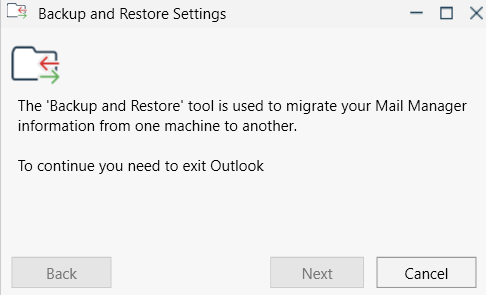
You will be prompted to exit Outlook.
-
Once Outlook is closed, select Backup.
- Choose a Windows folder to save the file to.
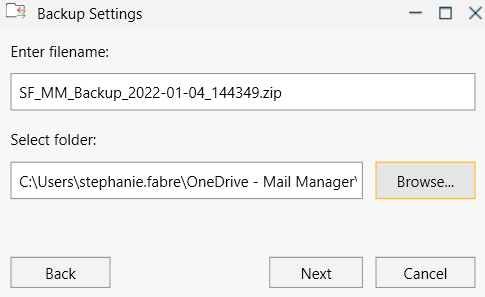
- Click Next.
- Follow the on-screen steps.
2. Restoring a backup
To perform an import:
- Open Outlook.
- Select Tools.
- Click Backup and Restore.
You will be prompted to exit Outlook.
-
Once Outlook is closed, select Backup.
- Browse to the backup file.
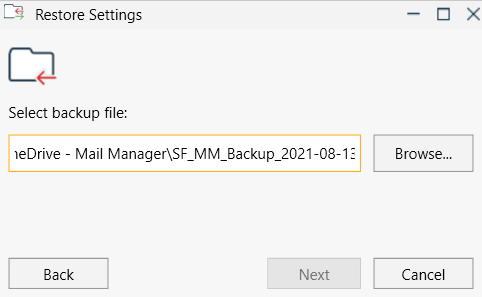
- Click Next.
Once complete, you can open Outlook.
Having trouble with creating or restoring the backup?
Ensure Outlook is fully closed during both parts of the process.