


New article
Recently updated
Troubleshooting: Unable to Add SharePoint Collections/Locations due to 403 Error Message

This article describes troubleshooting steps on how to resolve an issue where users are unable to add SharePoint Collections or Locations due to a 403 Error Message. When a 403 Error (Forbidden) is thrown this is due to the user not having the required permissions granted to access or edit the item they are needing.
This article outlines highlights the following troubleshooting steps that can be taken to resolve this problem:
- Checking User Preference Settings
- Checking users SharePoint Permissions
- SharePoint Permissions Required to See Locations
Check User Preference Settings
When this error appears when attempting to add a SharePoint Collection or Location is your User Preference Settings. Navigate to Outlook > Ideagen Mail Manager > Tool > User Preference > Intergration - Microsoft 365 > Scroll down to SharePoint.
- Ensure 'Enable SharePoint Location Picker' has been ticked:
- Check the SharePoint Tenant Path has the correct path been inserted here?
- Whilst in the User Preference settings check the Shared Configuration folder has the correct path inserted. Navigate to User Preference > General - Filing > Scroll down to Shared Configuration Folder
Tip: If unsure if these settings are correct, compare them with another user who can add SharePoint collections and Locations in Ideagen Mail Manager who you should have the same permissions too. Do you spot any differences?
Checking users SharePoint Permissions
If the previous steps appears to be set correctly check what permissions the user has been granted for the SharePoint Paths.
- Can the user view the SharePoint path in the browser?
- If No, then you will need to speak with your administrator or SharePoint site owner to grant the affect user the correct permissions so that they can access the SharePoint site and make amendments. (Please see next step: SharePoint Permissions Required to See Locations)
- If Yes, can they make edits in the SharePoint location? They can test this by attempting to add a folder here.
- If No, then you will need to speak with your administrator or SharePoint site owner to grant the affect user the correct permissions so that they and make amendments in the required SharePoint folder. (Please see next step: SharePoint Permissions Required to See Locations)
- If Yes, please see review or Tip and then follow the guide in our next step Resetting SharePoint Authentication Token.
Tip: If the user can view and edit the SharePoint path, please check that the SharePoint profile is the same as the profile that as being used to Authenticate SharePoint in Ideagen Mail Manager. If unsure on how to do this please skip to chapter Resetting SharePoint Authentication Token.
SharePoint Permissions Required to See Locations
Note: If you do not know who can grant you the correct permissions for the SharePoint location we advise that you speak with your Ideagen Mail Manager administrator.
Following the above guidance if you are still unable to see the needed location it maybe that you (or the affected user) have not been granted the correct permissions to view the Ideagen Mail Manager SharePoint Locations. Locations and Collections can be set to read only to prevent users editing them. They can also be set to no access to prevent users viewing the location/collection. All settings for this are controlled via Windows Permissions. The minimum permission requires for the following features would be:
- Auto Discovery of Filing Locations: Users require a minimum of "Read" permissions to discover locations throughout the SharePoint hierarchye.g.(Sites, Sub-sites, Document Libraries)
- Ideagen Mail Manager Search: Users require a minimum of "Read" permission at the document library level to search for filed messages.
-
Ideagen Mail Manager Filing and Searching: Users require a minimum of "Contribute" permissions at the document library level to file and search messages.
Examples of permissions within SharePoint: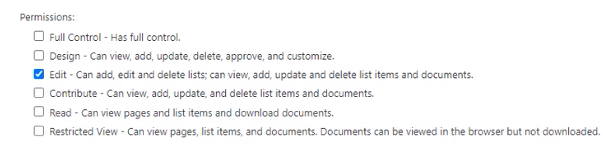
Important:We strongly recommend applying permissions on folders or files within a document library. When more restricted permissions are required for confidentiality reasons etc., we recommend that you create a separate document library.
To rectify this you will need to speak with your administrator to ensure the correct permissions have been granted to allow you to search for the required location.
Resetting SharePoint Authentication Token
To reset the users SharePoint Authentication Token the mmAuthStore.db file will need to be deleted and the following steps will guide you on how to delete this file:
- Ensure Outlook is closed
- Clear your cookies/cache from your internet browser
- In File Explore follow the path: C:\Users\<user_name>\AppData\Local\28Hands\Mail Manager
Alternatively, hold down "Windows Key" and "R" on your Keyboard. This will prompt the "Run" feature to pop up:
This is a shortcut feature to search for folders/files in your File Explore. The shortcut path to themmAuthStore.dbfile is:%localappdata%\28Hands\Mail Manager\ - Locate and Delete themmAuthStore.dbfile:
- Restart Outlook and re-enter SharePoint credentials when requested.
Ensure that this is the same profile being used for SharePoint.
Note: Please consider that this may not resolve the problem immediately. If this did not rectify the problem straight away, we recommend waiting 24 hours for Ideagen Mail Manager and SharePoint to connect and to ensure that the machine has been rebooted during this time.
If you find this has not helped to resolve the problem you have been experiencing please contact our Support team with your Diagnostic Logs instruction on how to do this can be found in the following article: