


New article
Recently updated
Recovering lost Collections

Who is this article for?Ideagen Mail Manager users attemptingto resolve issues.
Ideagen Mail Manager must be installed.
This article is designed to help troubleshoot and diagnose the root cause which fixes the issue user face where they cannot add Locations to their Collections or Search within a specific Collection.
This article outlines:
Steps To Recover Lost collections
Ideagen Mail Manager includes a facility to rebuild collection files from an mmStores.db file.
This feature is used as follows:
1. Copy the following text to the clipboard:
cd %LocalAppData%\Oasys\Mail Manager
2. Open a Windows command window e.g. Start > Run > cmd
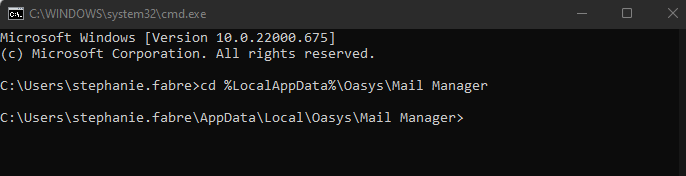
3. Within the command window right-click and select Paste then press Enter e.g.
4. Copy the following text to the clipboard
If you are using per machine installer:
"C:\Mail Manager\Program Files\x86\MmDbUpgrade.exe" recovercollections
If you are using per user installer:
"%localappdata%\Mail Manager\Program Files\x86\MmDbUpgrade.exe" recovercollections
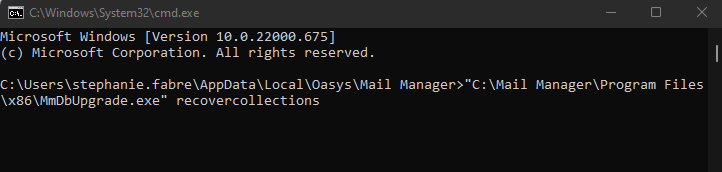
5. Within the command window right-click and select Paste then press Enter e.g.
Per machine
Per user
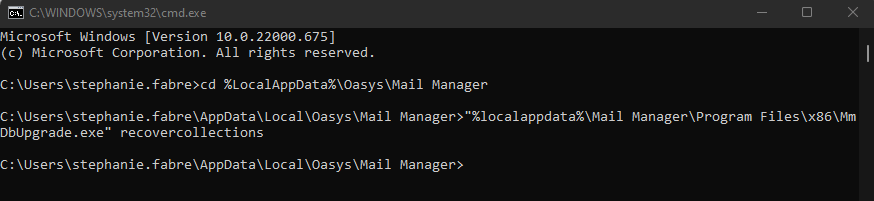
The collections will have been recreated.
Note: If you get an error, you may not have fully copied the text in bold, or you have an additional space at the start or end.
6. To open the folder to retrieve the recreated collections copy the following text to the clipboard
%LocalAppData%\Oasys\Mail Manager
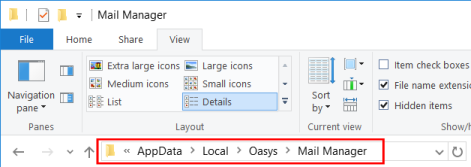
7. Open Windows Explorer and paste the path into the address bar e.g.
8. The retrieved collections will be prefixed with “_”. Move the Collections back to the original folder and remove the underscore from the file name
Note: If two or more collections with the same name are found (e.g. from different folders), the locations will be merged into a single collection (unconfirmed/untested)