


New article
Recently updated
Understanding and enabling Outlook cached exchange mode

Who is this article for?
Users who want to understand Outlook cached exchange mode.
No special access is required.
Outlook cached exchange mode stores a local copy of your Microsoft 365/Exchange mailbox on your computer, enabling faster performance and offline access to your emails.
Understanding Outlook cached exchange mode
Outlook cached exchange mode means Outlook keeps a local copy of your Microsoft 365/Exchange mailbox on your computer, normally in an .ost file.
Instead of Outlook constantly reading everything directly from the Exchange server, it works like this: Exchange/Microsoft 365 → local Outlook cache (.ost) → Outlook.
This provides several benefits:
- Faster Outlook performance because emails are read locally
- Offline access so you can read and compose emails without a connection
- Automatic synchronisation when you're online (changes made locally sync back to Exchange, and server changes sync down)
- Outlook can be configured to cache a particular period, such as three months, one year, or all email
Checking or enabling Outlook cached exchange mode
To check or enable cached exchange mode:
- In Outlook, go to File.
- Select Account Settings.
- Double-click your email account.
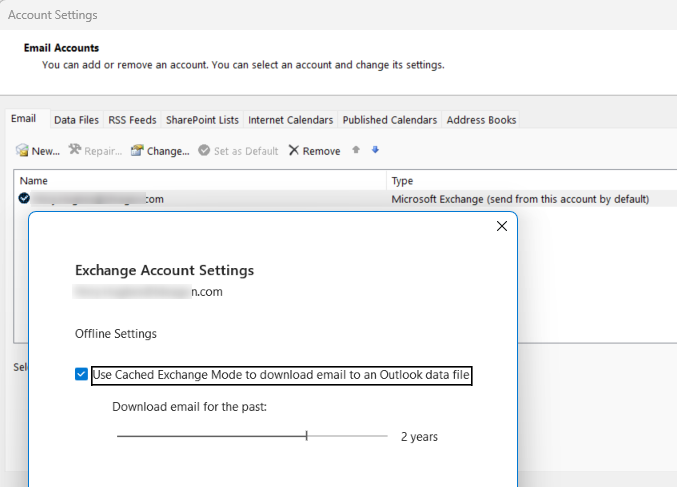
Alternatively, you can follow Microsoft's instructions for turning on cached exchange mode.