


New article
Recently updated
Deploying the Mail Manager New Outlook add-in organisation-wide

Who is this article for?
Admins who want to deploy the new Outlook web add in to all Mail Manager users.
Administrator access is required.
This article explains how to deploy the Mail Manager New Outlook add-in across multiple machines in your organisation using the Microsoft 365 admin centre.
Before you begin
The basic steps for organisation-wide deployment are listed here. These may vary slightly depending on Microsoft updates. You can find the full guidance in Microsoft's documentation on deploying add-ins in your organisation.
Important: Only deploy this add-in to users of Mail Manager. If a user has this add-in loaded in New Outlook and they do not have Mail Manager running on their PC, this app will interfere with sending emails from New Outlook. We recommend only deploying to a specific group of Mail Manager users.
Downloading the manifest file
To download the manifest file
- Open the manifest file here. New Outlook add in manifest file
- Right-click anywhere on the page.
- Select Save As.
- Save the file as an .xml file.
Deploying the add-in
To deploy the add-in across your organisation:
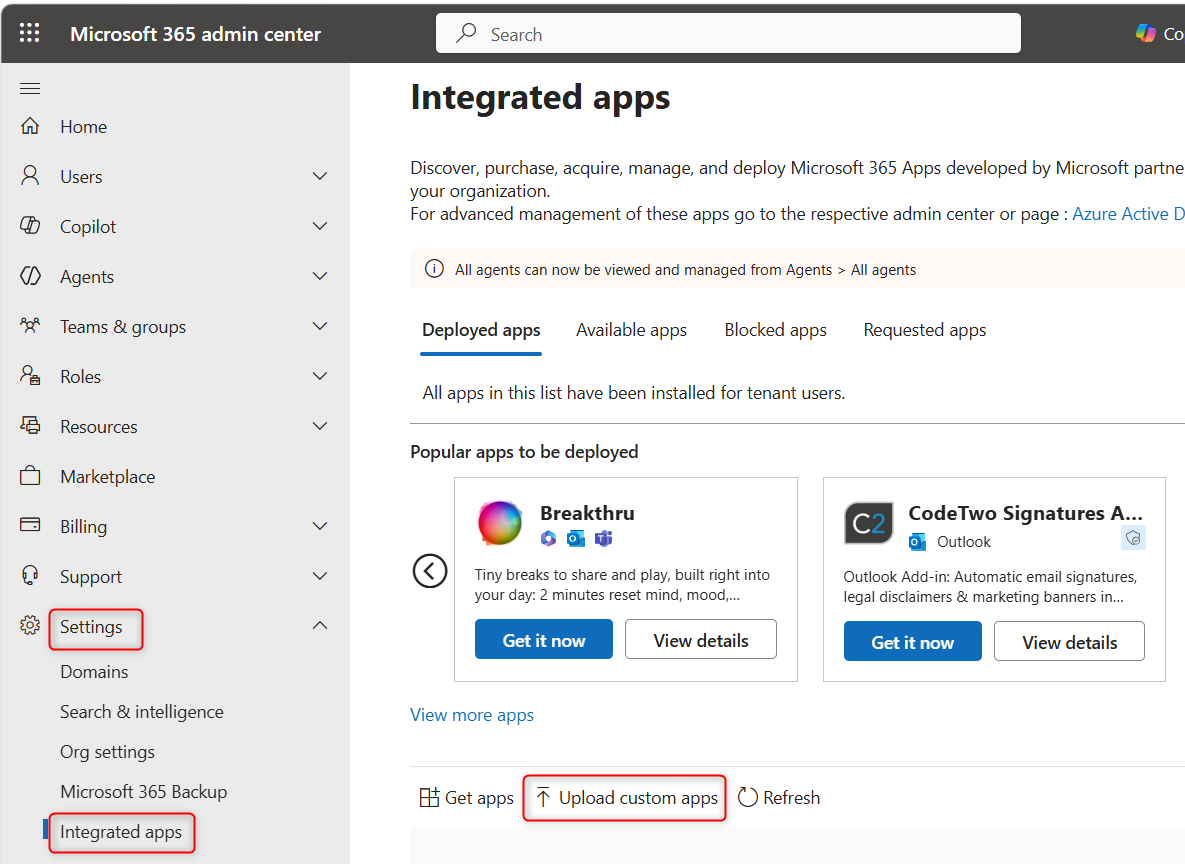
- Go to your Microsoft 365 admin centre at https://admin.cloud.microsoft/.
- Open Settings.
- Select Integrated apps.
- Select Upload custom apps.
- Select Office Add-in from the App type dropdown.
- Upload the manifest file.
- Choose whether to assign the add-in to everyone or to specific users or groups (we recommend creating a group for your Mail Manager users - Microsoft instructions here).
- Accept the permissions.
- Select Deploy to complete the installation.
- Refresh and check for the app in the deployed apps list.
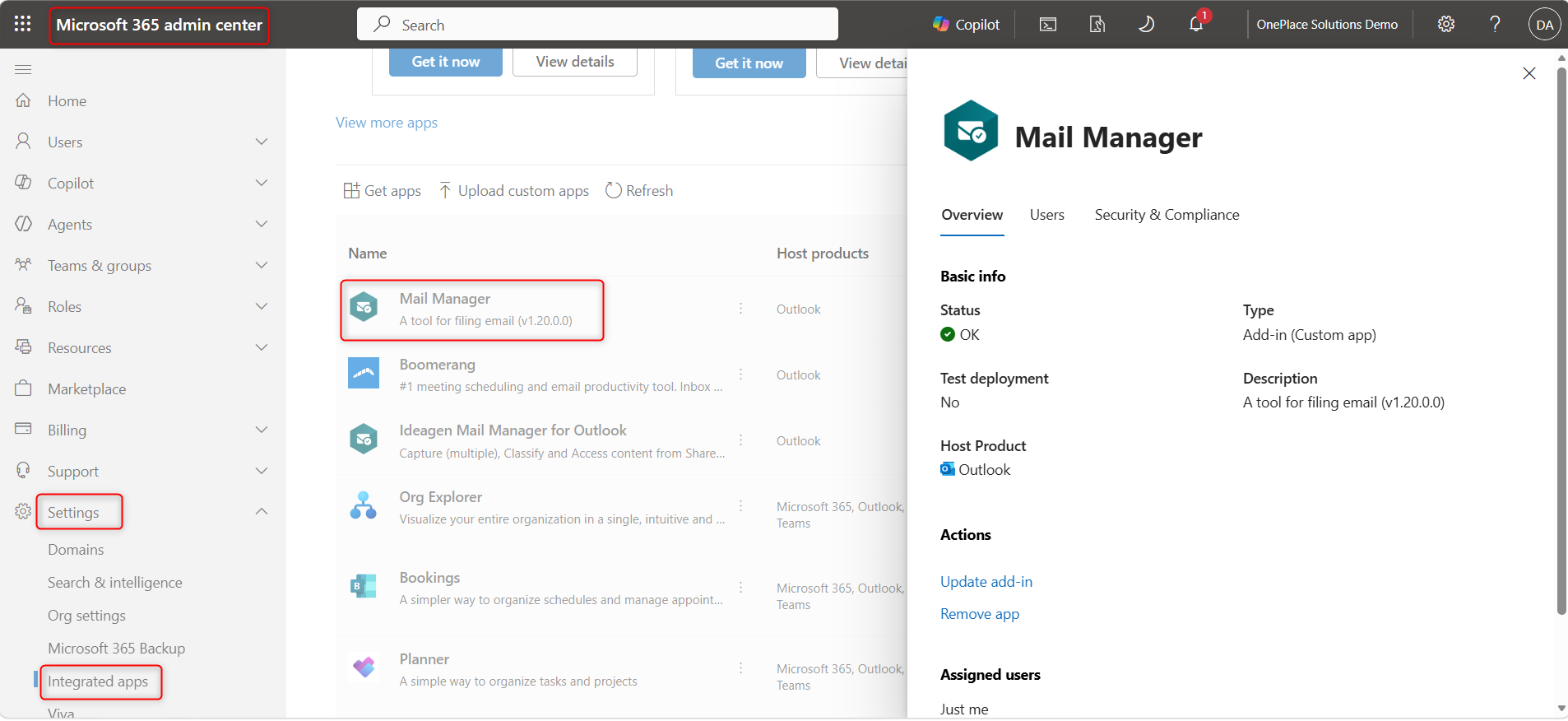
Note: Once an integrated app is deployed via the Microsoft 365 admin centre, it typically becomes available to assigned users within 15 to 60 minutes. However, in some cases, propagation may take up to 24 hours to complete across all Microsoft 365 services and client applications. In rare edge cases, propagation may take up to 72 hours.