


New article
Recently updated
Troubleshooting the Mail Manager mobile app

Who is this article for?
Admins who want to troubleshoot the mobile app not working.
some admin permissions are required.
If the Mail Manager mobile app is not working as expected, follow these troubleshooting steps to identify and resolve common issues.
Verifying prerequisites
To ensure the mobile app can function correctly:
- You are filing to SharePoint or OneDrive
- Your admin has approved the Microsoft app consents
- You have filed an email to SharePoint or OneDrive
- You have checked the share locations with my PC option in your Mail Manager user preferences
Checking the configuration files
The Mail Manager mobile app retrieves your locations and settings from configuration files stored in your personal OneDrive.
To verify the configuration files exist:
- Navigate to your personal OneDrive.
- Open the apps folder.
- Locate the Mail Manager folder.
The folder should contain your locations and settings from your PC:
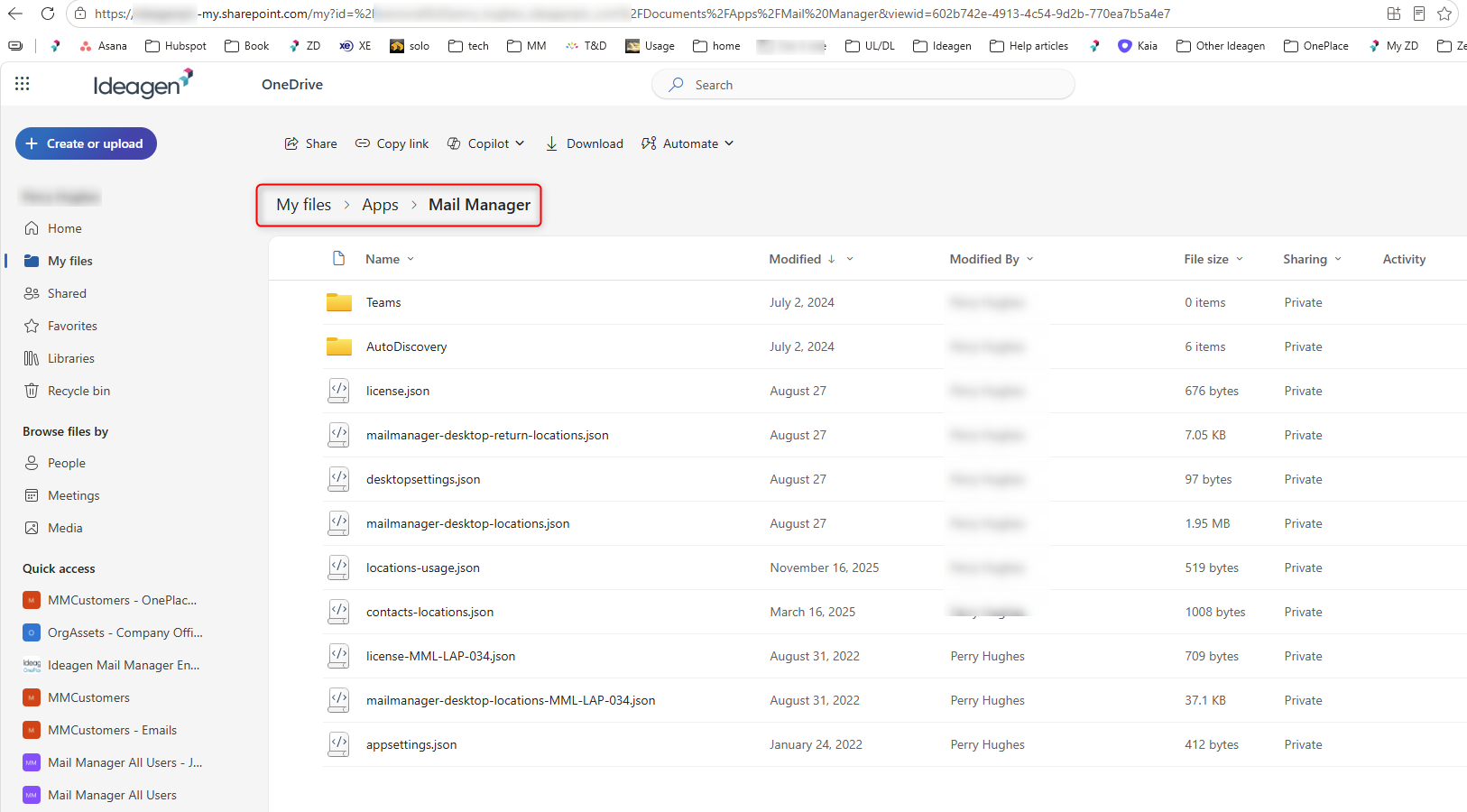
Note: This folder holds your locations and settings from your PC so the mobile app can access them.
Allowing time for synchronisation
Settings and files can take up to 10 minutes to synchronise. If the mobile app is not working immediately after setup, wait 10 minutes before troubleshooting further.