New article
Recently updated
Installing the Mail Manager web add-in for New Outlook manually

Who is this article for?
Users who want to install the web add in for new Outlook.
Access to install a custom add in is required.
This article explains how to manually install the Mail Manager web add-in for New Outlook, which is one component of the complete setup process.
Before you begin
This is just one component of the Mail Manager New Outlook setup process. You must complete all other steps in the main setup article for New Outlook mode to work.
Downloading the manifest file
To download the add-in manifest file:
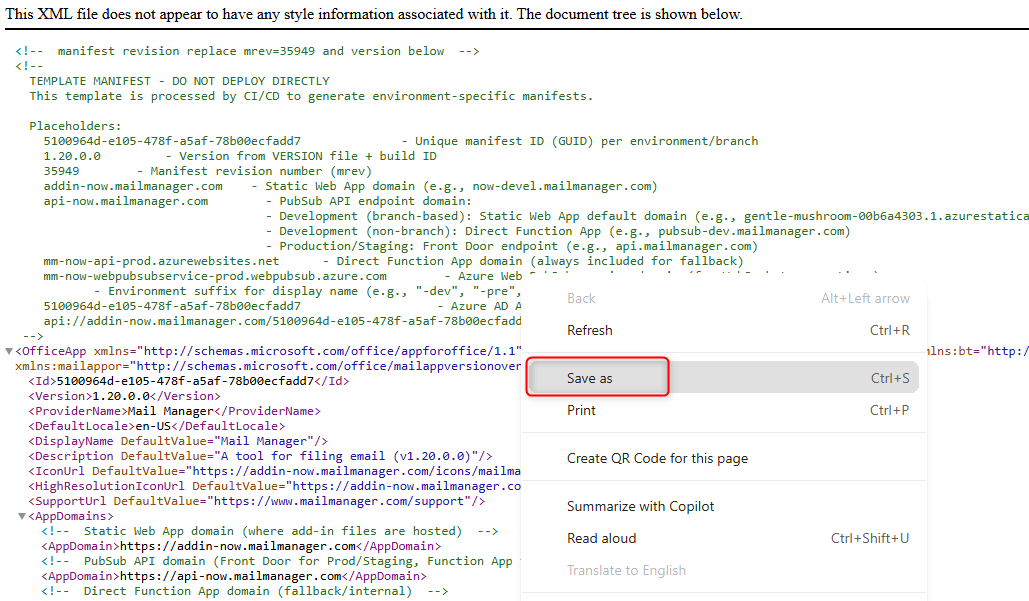
- Open the manifest file.
- Right-click anywhere on the page.
- Select Save As.
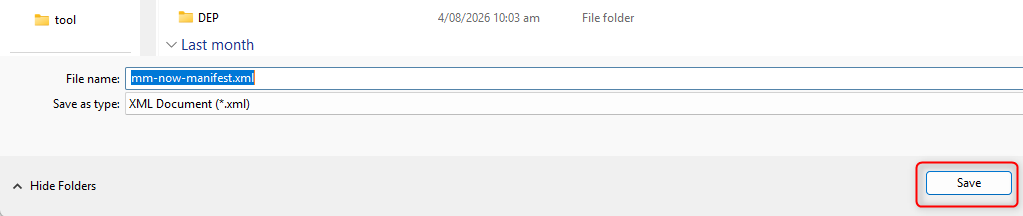
- Save the file as an .xml file (this is your add-in manifest file).
Installing the add-in
To install the custom add-in:
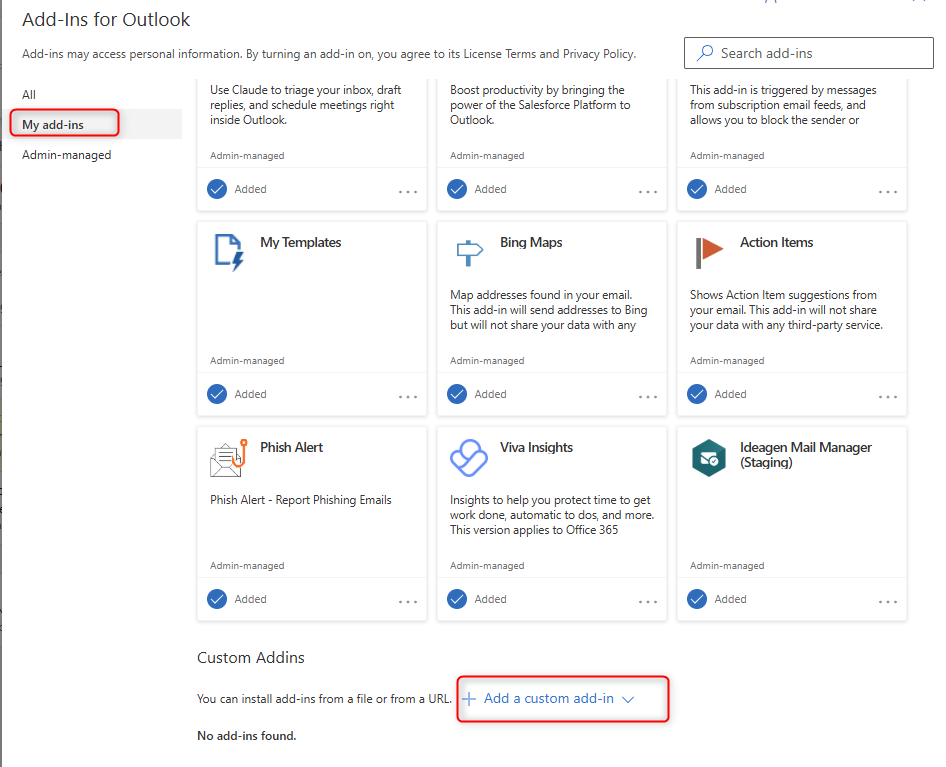
- Go to your Microsoft Office add-ins.
- Click My Add-ins.
- Select Add a custom Add-in.
- Choose Add from file.
Note: If you do not see Add a custom add-in, you will need to contact your IT team as you do not have access to install custom add-ins. Your IT team must do this for you as detailed in the main setup article.
- Browse to where you saved the add-in manifest file and select it.
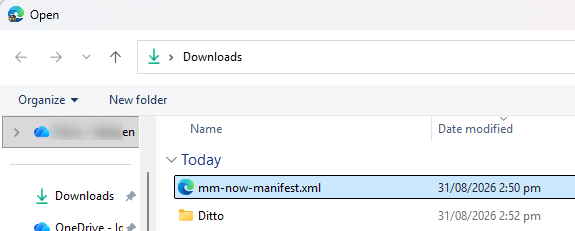
- Select Open.
- Click Install.
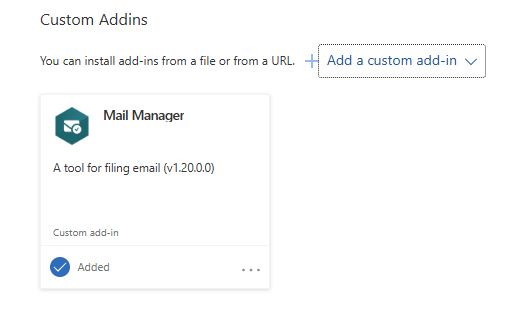
You will now have the Mail Manager web add-in installed for New Outlook. It looks like the below: