


New article
Recently updated
Reducing Mail Manager background index CPU and network usage

Who is this article for?
Customers who notice Mail Manager using too much data or network bandwidth to index SharePoint.
Some administrator permissions are required.
Mail Manager provides several settings to reduce the CPU and network bandwidth used by the background search index.
Using the 'Search only locations I use' setting
This is the main setting to reduce search index load and is recommended for all Mail Manager users.
To enable this setting:
- Go to Mail Manager.
- Select Tools.
- Choose User Preferences.
- Select Search.
- Enable Search only locations I use.
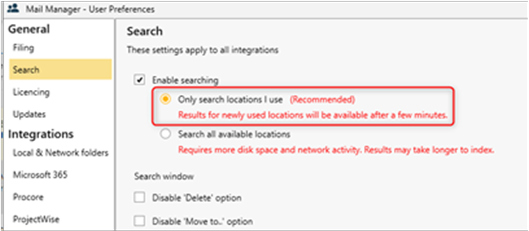
You can apply this setting to all Mail Manager users via the admin preferences.
To apply this setting to all users:
- Go to Mail Manager.
- Select Tools.
- Choose User Preferences.
- Press CTL-SHIFT-E.
- Select Admin Preferences.
- Enable Search only locations I use.
With this setting is enabled, you can still mark locations that you don't file to as 'used' in the filing prompt.
Note: There is no real downside to using this setting. Once set, indexing load will settle down after a few days.
Using the IndexOnlyWhenSearching config variable
This optional config variable reduces index load to almost nothing by running the background indexer only when users are actively searching in the Mail Manager search tool.
To apply this setting:
- Add the config line
IndexOnlyWhenSearching=1to a single user or all users of Mail Manager. - Follow the instructions in Applying additional user preferences at point 2 (Using EmailFiling.cfg) for a single user or point 3 (Using AdminEmailFiling.cfg) for all users.
Important: This setting will reduce your ability to find emails quickly in the Mail Manager search.
Switch to Microsoft graph API index scanning
This optional config variable moves to a different API for indexing emails in SharePoint, this new API greatly reduces bandwidth when indexing SharePoint.
To apply this setting:
- Add the config line
GraphSharepointScanningEnabled=1to a single user or all users of Mail Manager. - Follow the instructions in Applying additional user preferences at point 2 (Using EmailFiling.cfg) for a single user or point 3 (Using AdminEmailFiling.cfg) for all users.
Important: This setting will require a Microsoft graph consent if graph is not already in use.
Adjusting the SharePoint indexing interval
You can adjust the time interval between SharePoint indexing runs using the SharePointIndexingInterval variable. The default interval is 15 minutes.
To adjust the indexing interval:
- Add the config line
SharePointIndexingInterval=01:00:00(or your preferred interval in HH:MM:SS format). - Follow the instructions in Applying additional user preferences at point 2 (Using EmailFiling.cfg) for a single user or point 3 (Using AdminEmailFiling.cfg) for all users.
- Test the new interval.
You could start with one hour as shown above, then try two or four hours to find what works best for your environment.
Adjusting the search builder throttle factor
You can slow down the default indexing rate with the below config line:
#SearchBuilderThrottlePauseFactor=3
This sets a factor to be applied to the calculated build wait time. The default is 3.
If an email normally takes 2 seconds to index there will be a pause of 2 x 3 before it indexes the next email. Increasing the factor increases the pause time.
We recommend a start by increase the factor to 20 and adjust as necessary.