New article
Recently updated
Using Mail Manager categories

Who is this article for?
User who want to understand how to use Mail Manager Categories in Search.
Some admin permisssions may be required.
Mail Manager categories are custom labels you create to organise and filter your filed emails, separate from Outlook categories.
Understanding Mail Manager categories
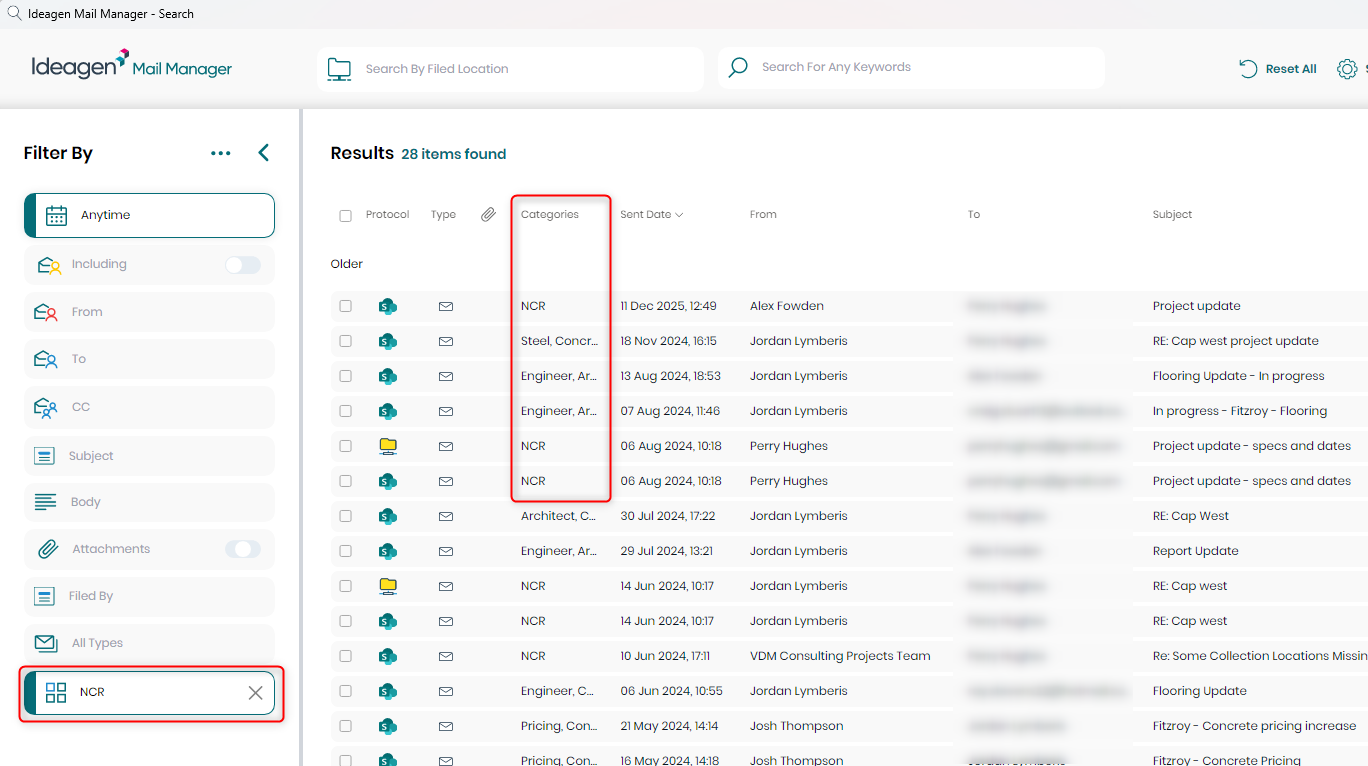
Mail Manager categories are custom words or text that you create within Mail Manager and apply to emails as you file them. You can then search and filter on these categories in the Mail Manager search.
These categories are completely separate from Outlook categories.
Creating categories for yourself
To set up categories for your own use:
- Go to Mail Manager.
- Select Tools.
- Choose User Preferences.
- Select Filing.
- Choose Categories.
- Click Update.
These settings apply only to you.
Creating categories for all users
To set up categories for everyone in your organisation:
- Go to Mail Manager Admin preferences.
- Navigate to the same location as user preferences.
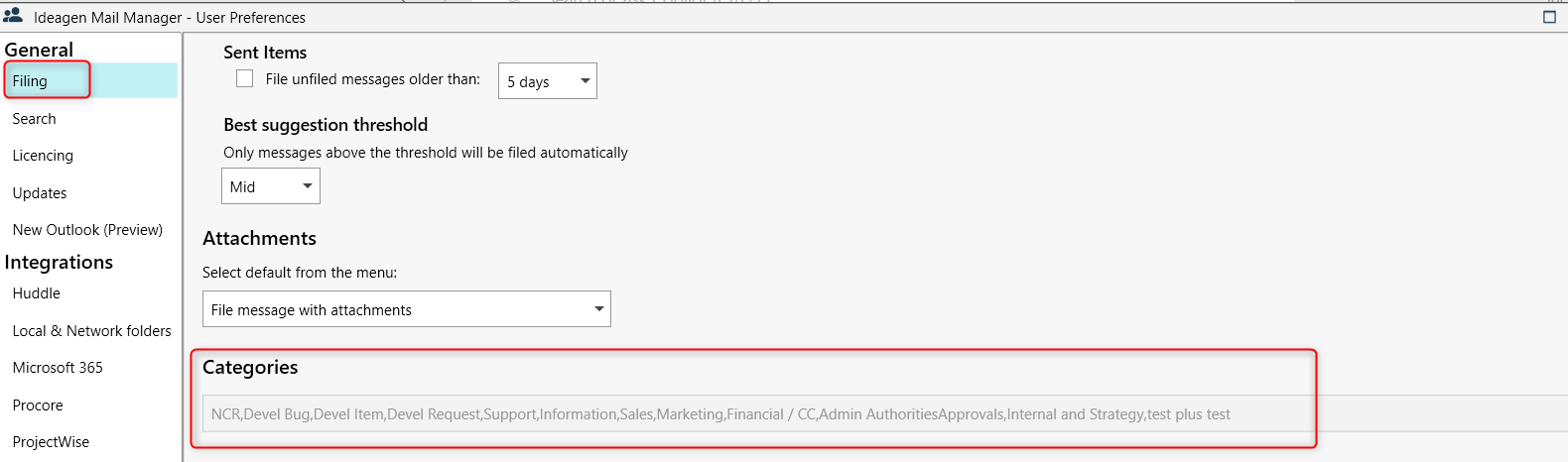
Note: Mail Manager categories should ideally not contain special characters such as &*()%$_+. They should be one word with no spaces.
Linking Outlook categories to Mail Manager categories
Once you have set up your Mail Manager categories, you can link them to Outlook categories. If you apply an Outlook category with the same name to an email, Mail Manager will automatically transpose it into the corresponding Mail Manager category when you file the email.
The Mail Manager category and the Outlook category are set up separately and must have exactly the same spelling.
Using categories to filter searches
Mail Manager categories are designed as an additional filter for searching emails. For example, if you apply a category of Engineering to many filed emails, you can search or filter your Mail Manager search by this category.
Categories are primarily designed as an additional search filter to help you locate specific emails more efficiently.