


New article
Recently updated
Unable to search for SharePoint locations

Who is this article for?Users who are unable to find SharePoint Locations.
Administrator permissions may be required.
This article is designed to help troubleshoot and diagnose the root cause of SharePoint locations not appearing.
If you the issue persists after completing the steps in this article, try our troubleshooting for locations disappearing and reappearing intermittently.
- Checking search preferences
- Checking views
- Checking permissions
- Checking SharePoint settings
- Clearing data
1. Checking search preferences
There are two search settings that need to be activated in order for you to be able to look up locations.
General
To check the setting:
- Select Tool.
- Open User Preferences.
- Choose Search (under General).
- Ensure that Enable Searching is enabled.
- Choose one of the available options.
- Only search locations I use is suitable for users who file to a relatively small number of locations and rarely need to search a location they haven't filed to.
- Search all available locations is suitable for users who need to search across all locations, whether they have filed to them or not.
Integrations
To check the setting:
- Select Tool.
- Open User Preferences.
- Choose Microsoft 365 (under Integrations).
- Ensure that Allow filing, Allow searching are enabled.
- Optionally, you can Enable SharePoint location picker.
This option will only work if it has been preconfigured by an Administrator.
If the issue only affects a limited number of users, we recommend comparing their search preferences with users who are able to see the locations and ensuring the setup is the same.
You may find that you cannot change these search preferences because they are locked. Contact your Administrator to change the selected options and check what is recommended for your environment.
2. Checking views
Unused locations
If you identify that the affected user is unable to search for the location in the New Search View, it may be that the location is not seen as "Used".
To check unused locations:
- Select Search.
- Choose the Open the classic search option.
- Ensure you have selected All items from the dropdown.
- Perform a search by entering your string in the Enter a location bar.
Alternatively, you can click the Folder icon displayed between the search bars.

- Choose Unused locations from the List dropdown.

If the needed location appears as an unused, select it to mark it as used. It should now appear in the New Search View.
Collection locations
It's possible that the Collection the location is associated with has not yet loaded into Ideagen Mail Manager.
To check this:
- Select Tool.
- Open Location.
- Find the Collection associated with the location.
- Check the Light Bulb icon (under Loaded).
If it's greyed out, it means it has not been loaded into Ideagen Mail Manager.

If the needed location appears as an unused, click the Light Bulb icon. It should turn yellow and the location should now appear in the New Search View.
3. Checking permissions
If you are still unable to see the needed location, it may be that the affected user has not been granted the correct permissions to view SharePoint locations. Locations (and Collections) can be set to read-only or to no access.
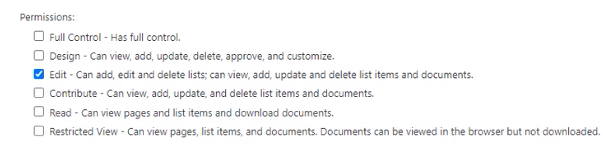
Minimum permissions required to view locations are:
- Auto Discovery of Filing Locations - Users require a minimum of "Read" permissions to discover locations throughout the SharePoint hierarchy (e.g.: Sites, Sub-sites, Document Libraries).
- Ideagen Mail Manager Search - Users require a minimum of "Read" permission at the Document Library level to search for filed messages.
- Ideagen Mail Manager Filing and Searching - Users require a minimum of "Contribute" permissions at the Document Library level to file and search messages.
If you do not have the right permissions for the level of location access you need, speak to your Administrator to correct this.
4. Checking SharePoint settings
If the correct permissions have been granted to you, we advise that you check two settings for the shared locations.
General
To check the setting:
- Select Tool.
- Open User Preferences.
- Choose Filing (under General).
- Check the Shared configuration folder.
- Browse... to the correct path if it's incorrect or missing.
Integrations
To check the setting:
- Select Tool.
- Open User Preferences.
- Choose Microsoft 365 (under Integrations).
- Update... to the correct URL if it's incorrect or missing.
5. Clearing data
If you are still unable to search for the locations, you can try clearing local data.
To clear Ideagen Mail Manager data:
- Close Outlook.
- Go to: %localappdata%\28Hands\Mail Manager from File Explorer.
- Delete mmAuthStore.db.
- Open Outlook.
If this doesn't resolve the problem, try reindexing your Ideagen Mail Manager.
Note that this will wipe out the current index you have so if it is just slow at indexing, but it is working, it might be prudent NOT to follow this step unless specifically advised to by Support.
To reindex Ideagen Mail Manager data:
- Close Outlook.
- Go to: %localappdata%\28Hands\Mail Manager from File Explorer.
- Rename the Index folder to Indexold.
- Open Outlook.
This simulates a new user to test the index importer. This may take a few days to complete depending on the amount of data that requires reindexing.
If you are still experiencing the issue after completing all suggested troubleshooting steps, contact our Support Team, including the URL root of the SharePoint site you are having trouble with.